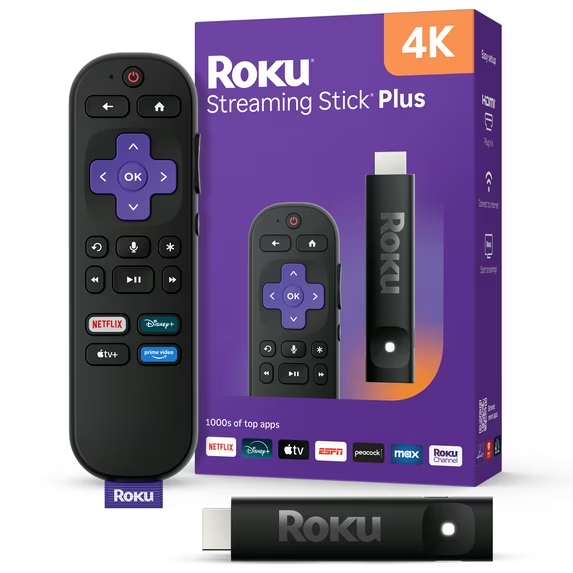

Some devices are flashy on paper but fussy in your living room. The Roku Streaming Stick Plus is the opposite: plug it in, sign in, and you’re basically done—yet there’s a lot of performance you can unlock with smart setup and a few pro tricks. In this article, we’ll turn the Roku Streaming Stick Plus into a calm, fast streaming hub: crisp 4K/HDR picture, stable Wi-Fi, voice shortcuts, private listening, travel mode, mobile casting, and a clutter-free home screen tailored for Movies & Streaming obsessives.
Shop Roku Streaming Stick Plus
What Makes Roku Streaming Stick Plus a Strong Everyday Pick
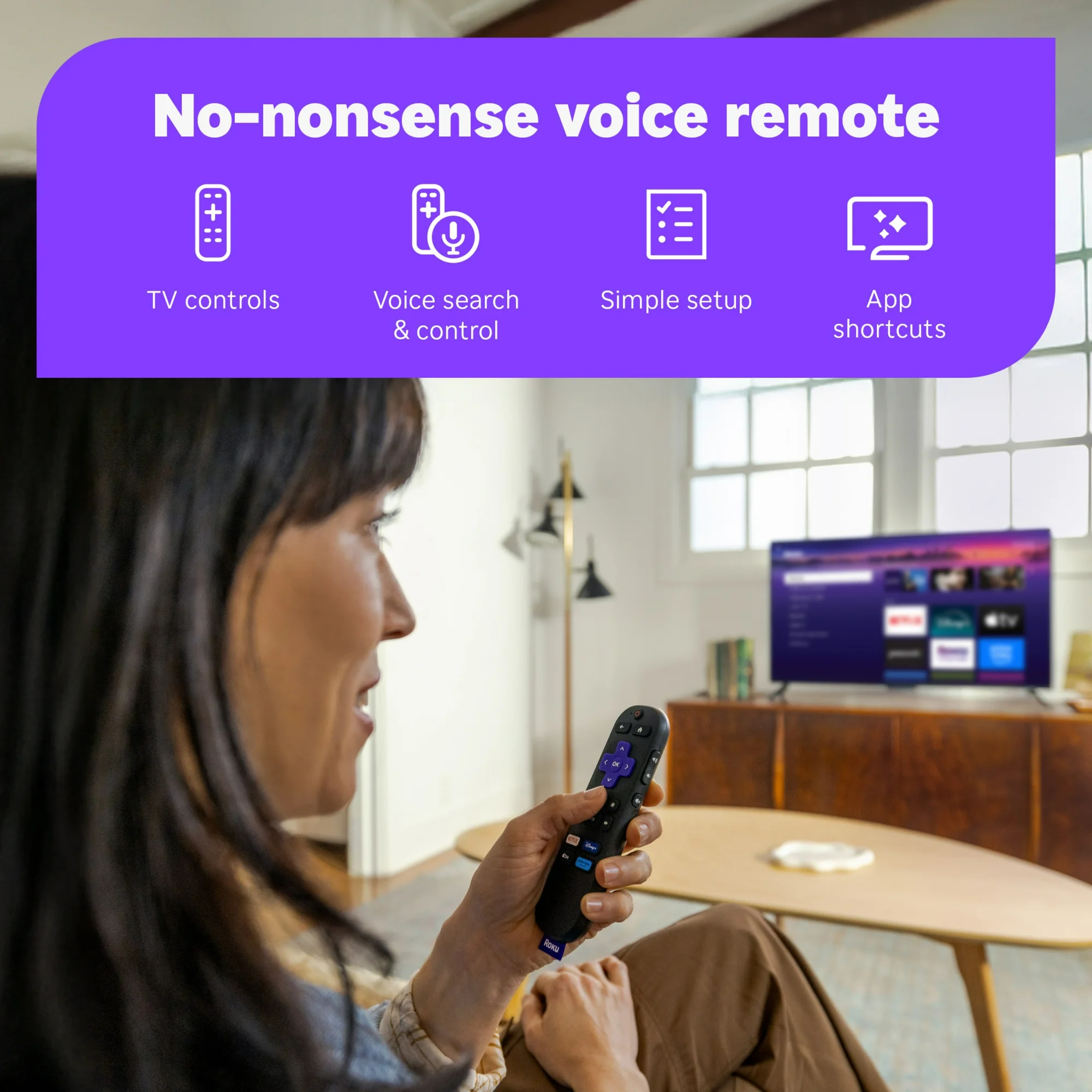
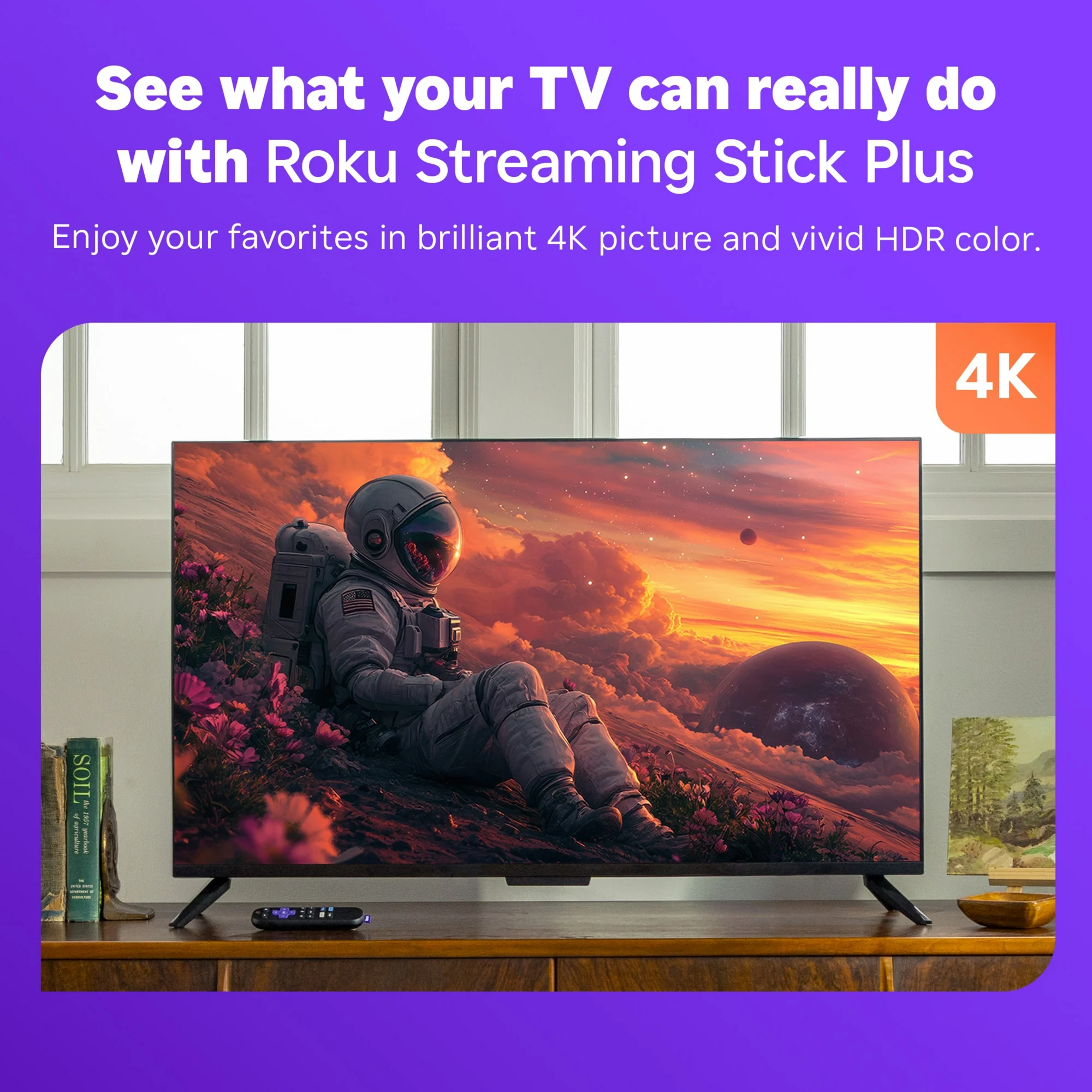
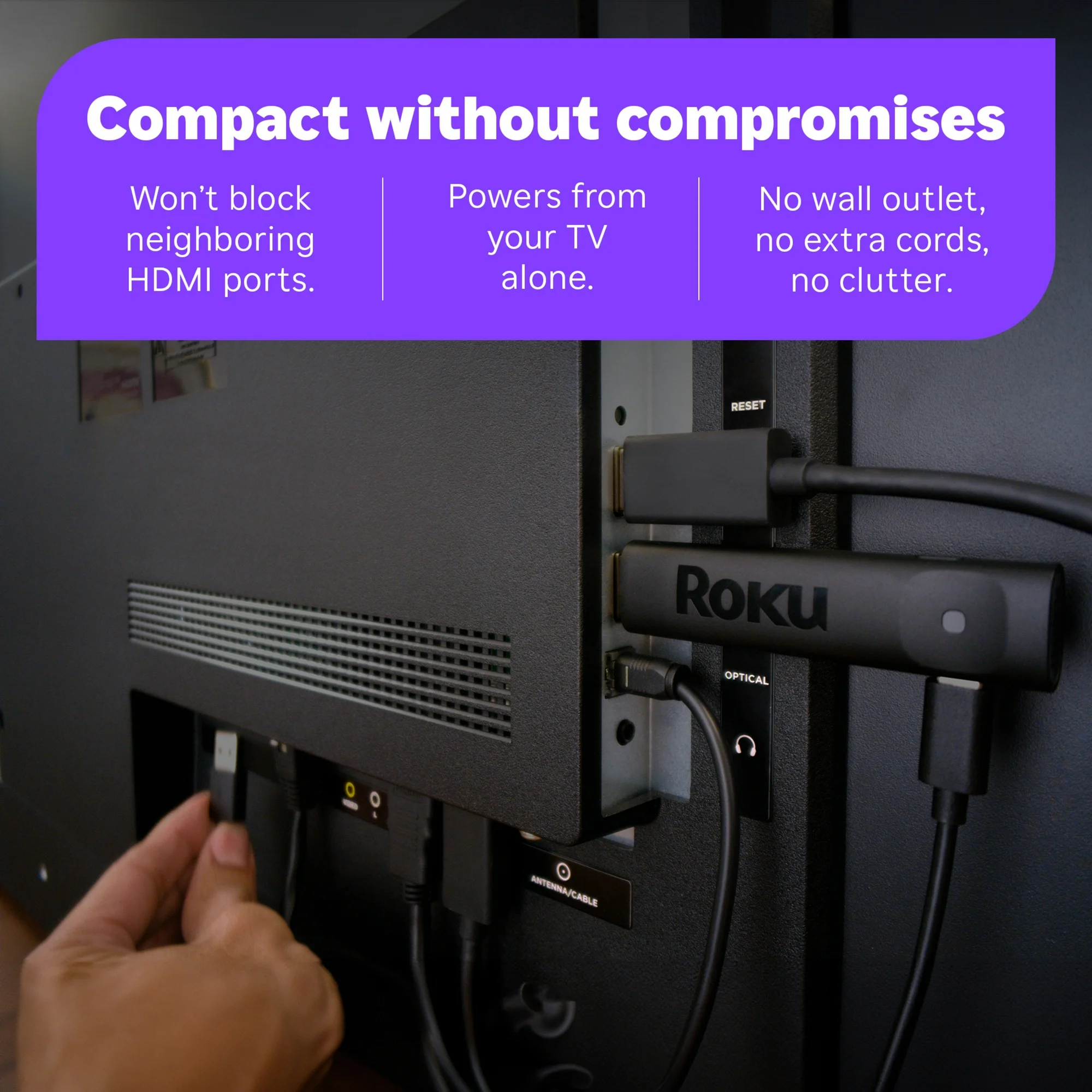
It’s a tiny HDMI stick that hides behind your TV yet delivers the big stuff: smooth navigation, a dead-simple interface, and broad app support across the major services. Because it draws power from USB and lives out of sight, you get less cable mess and fewer reasons to reach for a console or bulky box. Add the voice remote, universal search, and app-to-TV casting, and the Roku Streaming Stick Plus becomes a go-to for movie nights, live sports, and streaming originals without the friction.
Fast Start: From Unbox to Popcorn in 10 Minutes
- HDMI + Power. Plug the stick into an open HDMI port. Use the included USB power cable—preferably into a wall adapter for stable power.
- Wi-Fi & Updates. Join your strongest band (5 GHz when available). Let the Roku Streaming Stick Plus pull firmware updates before you start installing apps.
- Sign-Ins. Add your streaming apps and sign in. Use a password manager on your phone to speed this up.
- Display Settings. In Settings → Display type, choose “Auto detect.” Confirm 4K/HDR if your TV supports it; you can fine-tune later.
That’s it. You’re watching in minutes, not hours.
Picture Perfect: 4K/HDR Tuning That Actually Matters
A few settings unlock the best image:
- Display Type: Set to your TV’s native capability (4K HDR if supported). If colors look off, manually switch HDR modes to match your panel (e.g., HDR10).
- Match Content Frame Rate: Enable this to reduce motion judder with certain apps. The Roku Streaming Stick Plus will switch refresh rates to match the source.
- TV Picture Mode: Leave your TV on a neutral “Cinema” or “Movie” preset for natural color and better shadow detail; avoid torch-mode “Vivid.”
- HDR Brightness: Keep it at a balanced level; if highlights clip, nudge it down.
Shop Roku Streaming Stick Plus
Wi-Fi Confidence: Keep Streams Smooth During Prime Time
Streaming performance lives or dies on Wi-Fi. For the Roku Streaming Stick Plus:
- Prefer 5 GHz. It’s less crowded than 2.4 GHz and handles high-bitrate 4K better.
- Router Placement: Put the router high and central, away from metal racks.
- Channel Congestion: If your neighbors are on the same channel, change channels in your router admin to avoid interference.
- Ethernet Alternative: If buffering persists, consider a powerline or MoCA adapter feeding a dual-band access point near the TV.
Once your network is stable, the Roku Streaming Stick Plus rarely stutters, even with binge-worthy HDR shows.
Home Screen Feng Shui: Spend Time Watching, Not Scrolling
Curate your grid so the stuff you actually watch is up front:
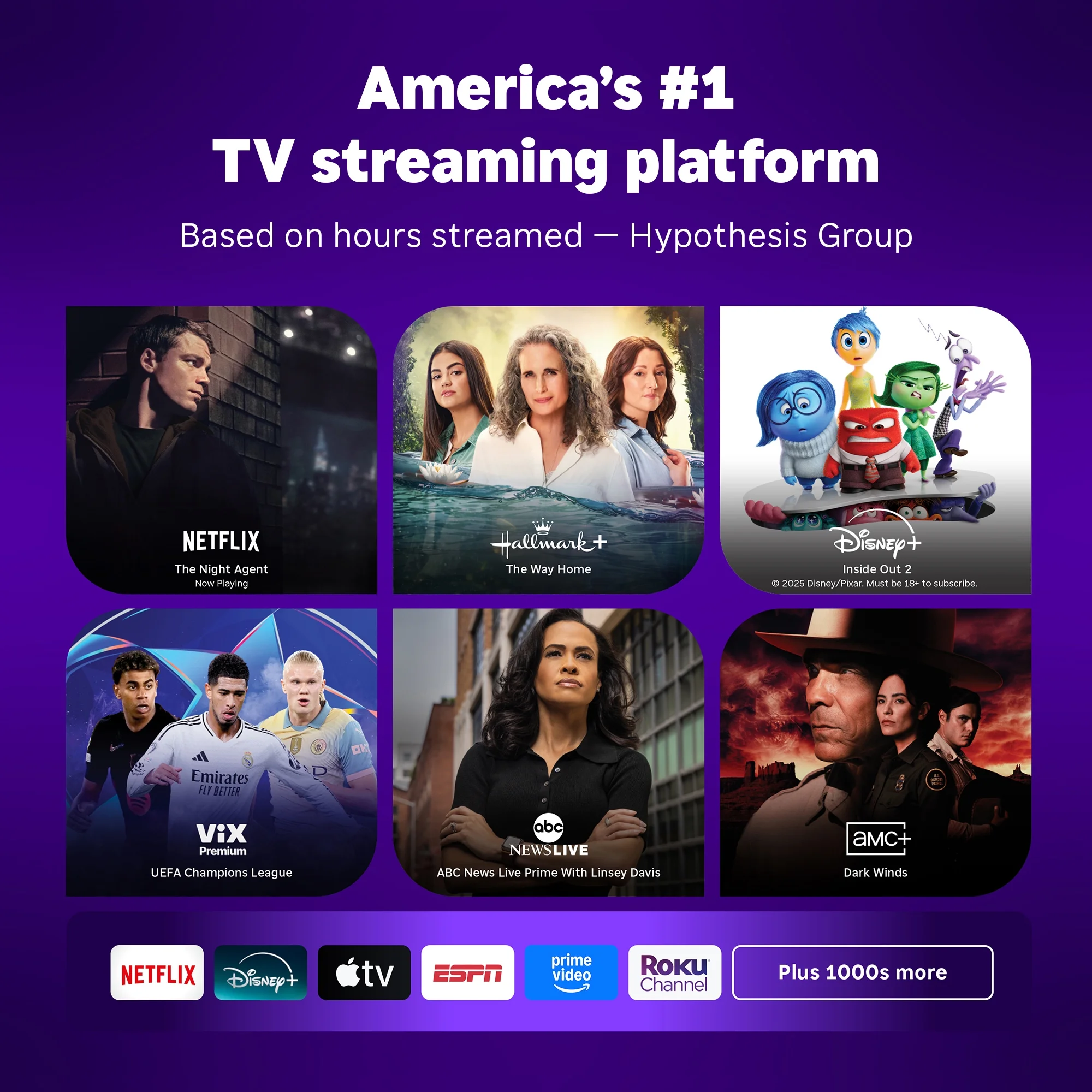
- Top Row = Daily Drivers: Your big three (e.g., Netflix, Prime Video, Disney+/Max, or your favorite AVOD).
- Second Row = Weeklies: Sports, niche film apps, or your go-to FAST channels.
- Folders? Not needed; the classic grid is faster.
- Recommendations: Use “Featured Free” and the search hub to surface free movies without app-hopping.
A tidy home screen means fewer decisions between you and the opening credits.
Remote Tricks: Voice, Private Listening, and Speed
The Roku Streaming Stick Plus voice remote is deceptively capable:
- Voice Search: Hold the mic and say “Play [title]” or “Find sci-fi movies.” It hunts across services, not just one app.
- Private Listening (via Mobile App): Plug headphones into your phone; the audio routes from the Roku Streaming Stick Plus to you—perfect for late-night sessions.
- Channel Launch Shortcuts: Long-press to move apps, press OK to open fast, and use the back button twice to exit apps quickly.
- TV Control: Many TV models let the Roku remote power on/off and adjust volume over HDMI-CEC, reducing remote clutter.
Shop Roku Streaming Stick Plus
Sound That Feels Cinematic (Without a Receiver)
- TV Speakers + Dialog Boost: If your TV supports dialog enhancement, enable it.
- Soundbar via HDMI-ARC: One cable delivers bigger sound and auto-sync with your TV remote.
- Output Format: Set streaming audio to “Auto” and let the Roku Streaming Stick Plus negotiate Dolby/DTS as supported.
- Night Mode: Some TVs/soundbars have a late-night setting to tame explosions and raise dialog for apartment-friendly viewing.
One Hybrid Block (Bullets + Guidance): The “Movie Night Mode” Macro
- Dim the Room: Kill overheads; leave a lamp behind the TV for bias light to ease eye strain.
- Switch TV to Cinema: Warmer color temperature, better skin tones.
- Check Internet Load: If roommates are gaming, ask for a 4K truce—or prioritize your device QoS in the router.
- Queue Trailers: Use voice search to pre-load options; no dead airtime.
- Snacks: Non-negotiable.
Shop Roku Streaming Stick Plus
Casting & Control: Make Your Phone the Co-Pilot
Install the Roku mobile app:
- Keyboard Input: Type passwords and searches on your phone instead of pecking with the remote.
- Cast Photos & Videos: Share travel clips to the TV for a quick slideshow.
- Private Listening: Tap the headphones icon to route sound to your phone.
- Find-My-Remote: If you upgrade to a beeper-equipped remote, the app can help locate it.
The phone app plus Roku Streaming Stick Plus is a stealth power combo for families and roommates.
Travel & Guest Room Mode: Take Your Shows on the Road
Hotel Wi-Fi often requires a browser sign-in. The Roku Streaming Stick Plus supports a network sign-in helper: connect the stick to the hotel network, then use your phone or laptop to authenticate through a captive portal. Pack a small travel power adapter and a short HDMI extension in case the TV’s ports are recessed. In guest rooms at home, create a separate profile with your “clean” app set so visitors can watch without digging through your queue.
App Must-Haves for Movies & Streaming Fans
- Your Big Subscription Apps: For originals, 4K movies, and new releases.
- FAST (Free Ad-Supported TV) Channels: For background TV and casual browsing.
- Niche Cinema Apps: Classic films, international titles, or festival darlings—perfect for movie lovers hunting deep cuts.
- Plex or Jellyfin: Stream your own library in a slick interface.
- YouTube: For trailers, behind-the-scenes, and creator essays.
A balanced mix makes the Roku Streaming Stick Plus feel like a unified media hub—not just a conduit to one service.
Parental Controls & Profiles: Keep Everyone Happy
- PIN for Purchases: Prevent accidental rentals with a 4-digit code.
- Content Ratings: Set restrictions on movie/TV ratings by profile.
- Kids Rows: Curate a kids-only row on the home screen so young viewers don’t get lost among your thrillers.
Shop Roku Streaming Stick Plus
Maintenance: Keep It Snappy for Years
- Reboot Occasionally: A quick restart clears cache cruft.
- Update Apps & Firmware: Most updates are automatic; manual check takes seconds.
- Storage Hygiene: If an app misbehaves, remove and reinstall; keep only what you use to speed up the home screen.
- Heat: Ensure airflow behind the TV; if your set runs hot, use a short HDMI extension to keep the Roku Streaming Stick Plus away from heat pockets.
Troubleshooting: Quick Fixes to Common Annoyances
- Buffering or Drops: Move the router, switch to 5 GHz, or change channels. If the TV’s USB power is flaky, power the stick from the wall.
- Washed-Out HDR: Manually set display to a known-good HDR mode or revert to SDR on older panels where tone-mapping is poor.
- No Sound: Check TV audio output (PCM/Auto), make sure HDMI-ARC is enabled for soundbars, and confirm app-level audio settings.
- Remote Lag: Replace batteries or re-pair the remote.
- App Won’t Open: Restart the app, then the device; reinstall if needed.
Accessibility That’s Actually Useful
- Captions: Customize size, color, and background for readability.
- Audio Guide: On-screen voice descriptions for menus.
- Color/Contrast: Many TVs let you combine Roku’s caption tools with high-contrast TV modes for better readability.
The Minimalist Living-Room Build (That Still Feels Premium)
- Display: Any decent 4K TV with good motion handling and HDR10.
- Sound: A slim HDMI-ARC soundbar for richer dialog and music.
- Network: Dual-band router within one room of the TV.
- Control: Roku Streaming Stick Plus voice remote + the mobile app for late-night private listening.
The result is clean, fast, and focused: no input roulette, no 20-button remotes, just content.
Conclusion
Streaming should be the easy part of your entertainment setup—not a weekend project. With the Roku Streaming Stick Plus, you get reliable 4K/HDR playback, a frictionless interface, and just-smart-enough features that make every night “press play and relax.” Tune display type and frame-rate matching, anchor your Wi-Fi on 5 GHz, curate a tight home screen, and use voice search and private listening to smooth out daily life. For Movies & Streaming lovers, this little stick can replace cable boxes and app-hopping with one calm, consistent experience—leaving more time for the good stuff: the stories on your screen.
Shop Roku Streaming Stick Plus
FAQ
- Can the Roku Streaming Stick Plus handle 4K/HDR on older TVs?
If your TV supports 4K/HDR, yes—set Display type to 4K HDR. On older 1080p sets, the stick will output 1080p and still feel snappy. - Is 5 GHz Wi-Fi required for good performance?
Not required, but strongly recommended for higher-bitrate 4K streams. If 2.4 GHz is your only option, reduce congestion and keep the router nearby. - Does the voice remote control TV power and volume?
On most sets with HDMI-CEC, yes. You can power on/off and adjust volume without juggling remotes. - What if HDR looks too dark or washed out?
Try a different HDR mode, raise TV backlight, or set output to SDR if your panel’s tone-mapping is weak. Matching frame rate can also help motion. - Can I take the stick to a hotel?
Yes. Use the network sign-in helper to authenticate on captive portals. Pack a wall adapter and short HDMI extension for tricky hotel TVs. - How do I improve dialog clarity?
Use a soundbar with dialog boost or enable your TV’s speech enhancement. Keep “Movie/Cinema” picture modes for natural tone that pairs well with dialog. - Is there a way to listen without waking the house?
Private Listening in the Roku mobile app routes audio to your phone’s headphones—great for late nights. - Do I need to clear cache or reset often?
Not usually. A periodic restart and keeping only the apps you use keeps the Roku Streaming Stick Plus feeling fresh. - Will it replace my cable box?
For many viewers, yes—streaming apps and live TV services cover news, sports, and movies. If you still need specific cable-only channels, keep the box on another HDMI input. - What’s the single best tweak after setup?
Enable “Match content frame rate” for smoother motion in compatible apps and set your display type to the TV’s exact capability for consistent HDR/SDR tone.