
Understanding Your Space Constraints and Room Layout
Your workspace has physical realities that demand respect. Before you even think about which mount to buy, measure what you’re actually working with. The distance from your wall to your desk, the depth of your desk surface, and the height of your existing furniture all play critical roles in determining what will fit comfortably in your environment.
Measuring wall space, desk depth, and clearance requirements
Start with the basics: how much vertical wall space do you have above your desk? Account for at least 12-18 inches of clearance below where your monitor will sit to avoid obstruction from keyboard trays, desk organizers, or other equipment. Measure your desk depth from the wall to its front edge—this measurement directly determines how far a wall mount can extend toward you and how much arm articulation you’ll need.
Evaluating structural capacity (drywall, concrete, wooden studs)
Where your mount anchors matters enormously for safety and longevity. Solid wooden studs behind drywall provide the strongest anchor point. Concrete walls require special masonry anchors. Standard drywall alone, without stud backing, has limited weight capacity and demands heavy-duty toggle bolts or other specialized fasteners. If you’re uncertain about your wall composition, a stud finder costs fifteen dollars and eliminates guesswork.
Accounting for cable management and accessibility
Mount placement should consider where cables naturally run from your monitor to power outlets and peripherals. Plan for cable channels, clips, or conduit that keeps everything organized and prevents tangling. Consider whether you’ll need regular access to ports on the back of your monitor—a mount that swings your display directly toward a wall limits future adjustments.
Considering natural light, glare, and viewing angles
Position your monitor perpendicular to windows when possible to minimize glare that strains your eyes. Your ideal viewing angle sits about 15-20 degrees below your horizontal eye line, which means the mount needs flexibility to tilt rather than lock into a fixed position. Test different angles before purchasing to understand what actually feels comfortable in your specific room lighting.
Assessing whether you need flexibility for multiple monitor positions
Some workflows demand constant repositioning. Designers, traders, and content creators often rotate between portrait and landscape orientations or shift monitors throughout the day. Others work in one position for eight hours straight. Understanding your actual work pattern determines whether you need articulating arms with unlimited swivel and tilt, or if a static wall mount serves you perfectly.
Planning for future equipment upgrades or workspace changes
Your current monitor might be 27 inches, but what about in two years? Choose a mount rated for somewhat larger displays than you currently own, and verify VESA compatibility so you’re not locked into a single monitor brand. Flexibility today prevents expensive replacements later.
Desk Mounts vs. Wall Mounts: Which Suits Your Workflow?
Two primary paths exist, and each solves different problems. The choice between them shapes everything else about your setup.
Desk mount advantages: portability, no wall drilling, easy adjustments
Desk mounts clamp directly to your desk surface and require zero wall modification. If you rent, move frequently, or work from multiple locations, this flexibility is invaluable. They excel at incremental adjustment—you can reposition your monitor throughout the day based on your current task. Disassembly takes minutes, making desk mounts ideal for people who experiment with their setups regularly.
Wall mount benefits: space savings, permanent installation, cleaner aesthetics
Wall mounting reclaims desk real estate. Floating your monitor eliminates the footprint of a clamp base, opening up surface area for keyboard trays, documents, or actual workspace. The installation feels permanent and professional. Cable routing behind mounted arms creates a clean aesthetic that justifies the effort of drilling and anchoring. For fixed installations where you’ve found your optimal position, wall mounts deliver visual elegance.
Hybrid solutions: adjustable arms that work on both surfaces
Some mounting systems offer dual compatibility—the same arm can clamp to a desk or attach to a wall. This flexibility costs slightly more but eliminates the need to choose immediately. You can test desk mounting first and transition to wall installation once you’ve dialed in your ideal position.
Cost comparison across different mounting types
Basic desk mounts range from twenty to fifty dollars. Quality articulating desk arms run sixty to one hundred fifty dollars. Wall mounts start around forty dollars for simple fixed brackets and climb to two hundred plus for premium articulating systems. The price reflects adjustability, weight capacity, and build quality.
Installation time and complexity for each option
A desk clamp installs in five minutes using an Allen wrench. Wall mounting requires locating studs, drilling pilot holes, anchoring fasteners, and leveling the bracket—expect thirty to forty-five minutes for someone experienced, longer if you’re new to wall work. Professional installation is available for wall mounts if you prefer outsourcing the physical work.
Maintenance and durability factors over time
Desk mounts develop slight play in their joints after years of daily adjustments. Wall mounts provide more permanence but leave wall damage if you ever remove them. Quality matters here—premium mounts from established manufacturers outlast budget options by several years.
Explore monitor mount options that match your space and budget at Monitorhalterung.de.
Ergonomic Positioning for Reduced Strain and Fatigue
The entire purpose of a monitor mount is enabling proper positioning. Getting this right transforms your daily experience.
Optimal monitor height relative to eye level
Your eyes should land roughly 15-20 degrees below horizontal when looking at the center of your screen. This translates to the top of your monitor being slightly above eye level. If your monitor sits too low, you crane your neck downward for eight hours straight. Too high causes sustained neck extension. A mount with tilt adjustment lets you fine-tune this critical angle.
Recommended viewing distance and screen angle
Distance equals your monitor’s diagonal measurement multiplied by 1.5 to 2.5. A 27-inch monitor should sit between 27-54 inches from your eyes. This range prevents eye strain and allows you to see your entire screen without turning your head. Angling your monitor slightly (5-10 degrees) away from you reduces glare and feels more natural than direct perpendicular positioning.
How articulating arms prevent repetitive strain injuries
Articulating mounts with full range-of-motion capabilities let you move your monitor throughout the day. Morning at one angle, afternoon at another. Occasional position shifts prevent the repetitive strain that accumulates from static positioning. Your neck, shoulders, and eyes all appreciate variation.
Multi-monitor setups and their ergonomic implications
Two monitors present new challenges. Position them at the same height, with the primary monitor directly in front and the secondary at a slight angle. A mount system supporting multiple displays requires careful weight distribution and robust anchoring. Don’t compromise on quality when mounting multiple panels.
Adjustability features that matter for all-day comfort
Tilt adjustment (vertical angle), pan adjustment (side-to-side), swivel (portrait to landscape), and height adjustment (up and down movement) create genuine comfort flexibility. Not every mount offers all four, but prioritize the adjustments that match your workflow. Someone switching between two monitors daily needs swivel. Someone fine-tuning position once needs only tilt.
Standing desk integration and dynamic positioning
If you alternate between sitting and standing, your monitor height needs to adjust accordingly. Standard fixed mounts fail here. Motorized mounts or heavily articulated arms that accommodate significant height changes become essential. The investment is worthwhile if standing is a regular part of your routine.
Matching Mount Types to Your Monitor Size and Weight
Physical specifications determine which mounts actually work for your display.
Small monitors (21-24 inches): lightweight arm options
These compact displays weigh under ten pounds and don’t demand heavy-duty mounts. Budget-friendly articulating arms perform perfectly. Weight capacity ratings of fifteen to twenty-five pounds provide comfortable safety margins. Installation is straightforward because forces on the mounting point remain manageable.
Medium displays (27-32 inches): reinforced mounting systems
Mid-range monitors (fifteen to twenty pounds) need mounts with capacity ratings of thirty-five to fifty pounds. Structural reinforcement becomes visible—thicker arms, larger base clamps, and more robust internal mechanisms. These mounts cost more but handle daily adjustment without degradation.
Large or curved monitors: specialized heavy-duty solutions
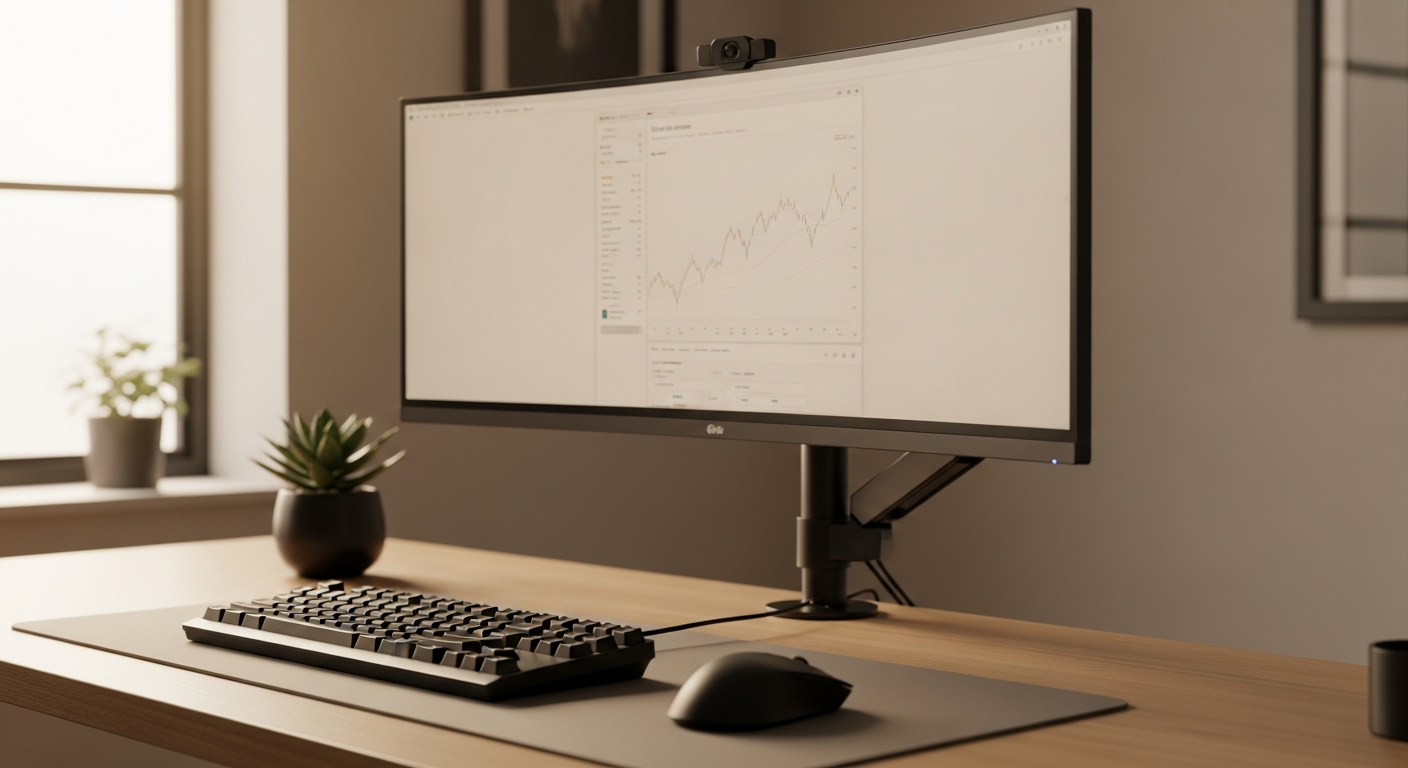
Curved displays and panels over 32 inches regularly weigh twenty-five plus pounds. Heavy-duty mounts with dual-arm support and capacity ratings exceeding fifty pounds are necessary. Single-point mounting creates unsafe stress concentrations. Professional installation often comes recommended because improper setup creates real safety risks.
VESA compatibility standards and what they mean
VESA (Video Electronics Standards Association) standardizes monitor mounting via four-hole patterns. VESA 75×75 fits small monitors. VESA 100×100 works for medium displays. VESA 200×200 supports large monitors. Verify your monitor’s VESA standard against your mount’s compatibility before purchase—mismatches mean returns and frustration.
Weight capacity ratings and safety margins
Always choose a mount rated for at least 1.5 times your monitor’s actual weight. A twenty-pound monitor needs a mount rated for thirty pounds minimum. Safety margins prevent gradual failure and ensure your investment lasts years without degradation or risk.
Compatibility with ultrawide and gaming monitors
Ultrawide displays present unusual mounting challenges due to their horizontal length and weight distribution. Gaming monitors often have aggressive curves that complicate standard mounting. Verify compatibility before committing—some mounts handle these specialized displays, others don’t.
The Complete Installation Process and Setup Timeline
Knowing what to expect removes anxiety and prevents mistakes.
Pre-installation checklist and tool requirements
Gather your tools before starting: drill with appropriate bits, level, stud finder, tape measure, Allen wrenches, and anchors rated for your wall type. Read your mount’s manual completely—skipping instructions invites problems. Locate wall studs if you’re wall mounting, mark your desired height with painter’s tape, and confirm clearance from obstacles.
Step-by-step wall mount installation for different surfaces
For wooden studs: drill pilot holes slightly smaller than your fastener diameter, then install lag screws or bolts with washers. For drywall without stud backing: use heavy-duty toggle bolts that expand behind the wall surface for maximum holding power. For concrete: drill with a masonry bit slightly smaller than your anchor size, tap the anchor in, then screw your fastener through the anchor into the concrete. Take your time with this step—a properly anchored mount won’t fail.
Desk clamp mounting procedures and positioning
Position your clamp on the desk edge, ensuring it contacts solid material without overhang. Tighten progressively around the clamp mechanism—avoid over-torquing individual bolts which can strip threads. Check that the mount arm extends forward without interference from your keyboard or body position while sitting.
Cable routing and organization strategies
Run cables behind the mount arm using adhesive clips or cable sleeves. Route power cables separately from data cables when possible to minimize interference. Leave some slack to accommodate monitor adjustment without stressing connections. Velcro straps organize multiple cables and allow future repositioning.
Testing stability and making micro-adjustments
Gently push your mounted monitor from multiple directions. It shouldn’t wobble or flex noticeably. If it does, check your fasteners and tighten as needed. Make minor height and angle adjustments until your sweet spot emerges. Spend an hour working in your normal position before declaring the setup complete.
Troubleshooting common installation issues
A mount that tilts when you don’t want it to has worn internal mechanisms or incorrect fastening. A wobbly installation suggests inadequate anchoring or incorrect clamp positioning. Cables pulling your monitor out of position need routing adjustments or cable management clips. Most problems resolve through systematic checking rather than returning equipment.
Budget-Friendly Options Without Sacrificing Quality
Cost and quality don’t always move in opposite directions.
Entry-level mounts for basic single-monitor setups
Budget mounts in the twenty to forty-dollar range handle straightforward single-monitor installations. These are fixed-position wall brackets or basic desk clamps with minimal adjustability. They work perfectly for situations where you’ve determined your ideal position and won’t change it. Reliability at this price point remains decent for light daily use.
Mid-range solutions offering flexibility and durability
The fifty to one hundred fifty-dollar range delivers quality articulating arms from established manufacturers. These mounts handle regular adjustment without degradation, support monitors up to thirty inches, and include robust internal mechanisms. This tier offers genuine value—you’re paying for reliability and flexibility without premium brand markup.
Premium systems with advanced features and warranties
Top-tier mounts (two hundred dollars and up) feature motorized adjustment, premium materials, extensive warranties, and customer support. These systems justify their cost through longevity and advanced functionality. If you plan to use your mount for five-plus years with heavy daily adjustment, the premium investment pays for itself.
Where to find quality mounts at competitive prices
Direct retailers often undercut marketplace vendors through lower overhead. Comparing specifications across multiple vendors reveals pricing gaps for identical products. Don’t assume the highest price equals best quality—research reviews before purchasing.
Seasonal sales and bundle deals on mounting systems
April and September typically bring office equipment sales as businesses refresh setups. Black Friday discounts extend to monitor mounts. Bundled packages pairing mounts with cable management systems sometimes cost less than purchasing components separately. Timing your purchase strategically stretches your budget.
Long-term value calculation: cost per year of use
A hundred-dollar mount used daily for five years costs twenty dollars annually. A three-hundred-dollar mount lasting seven years costs roughly forty-two dollars annually. The premium option doesn’t automatically deliver better value—calculate expected lifespan and usage frequency for your specific situation.
Your Path to the Perfect Monitor Mount Setup
The right monitor mount isn’t a luxury—it’s an investment in your productivity, comfort, and physical wellbeing. You now have the framework to evaluate your space, compare mounting types, and match specifications to your actual needs. Whether you’re drawn to the flexibility of a desk mount, the space-saving elegance of a wall solution, or something in between, your perfect setup exists within the extensive options available.
The key? Stop overthinking and start measuring. Grab a tape measure, assess your constraints, and match them against the mounting types covered here. Your future self—the one with better posture, less neck strain, and a workspace that actually works for you—will thank you for taking action today.
Ready to transform your home office? Browse the complete selection of monitor mounts at Monitorhalterung.de to find the solution that fits your space, budget, and workflow.